Discord Echo Cancellation: What It Does and When to Turn It Off
On for speakers, test it off on a closed-back headset, and why hearing your own echo is someone else's fault.
Discord echo cancellation stops your squad hearing themselves come back through your mic. It takes the call audio Discord just played out of your speakers and subtracts it from what your microphone picks up. On speakers, a laptop or a phone on speaker, leave it on. On a closed-back headset there is very little for it to remove, so if you sound quiet, pumping or choppy while someone else is talking, switch it off and run the 60-second test below. And if what bounces back is your own voice, the setting to change almost certainly lives on another player's machine, not yours.
This page is for anyone tuning Discord voice on PC or phone. Paths and definitions were checked against Discord's help center and developer docs on 9 October 2026.
What does echo cancellation do on Discord?
Acoustic echo is your speakers leaking into your microphone. Krisp's help center defines it as sound from speakers being picked up by the microphone, and Discord's developer docs for its Social SDK, the voice engine it offers to game studios, describe their echo canceller in the same words: it removes echo from speakers being picked up by the mic, and it defaults to on. The trick is that Discord already knows exactly what it played, so it keeps that copy as a reference and pulls anything matching it out of your outgoing audio. Nobody on your end ever hears the echo. The people who hear it are the ones whose voices are bouncing around your room.
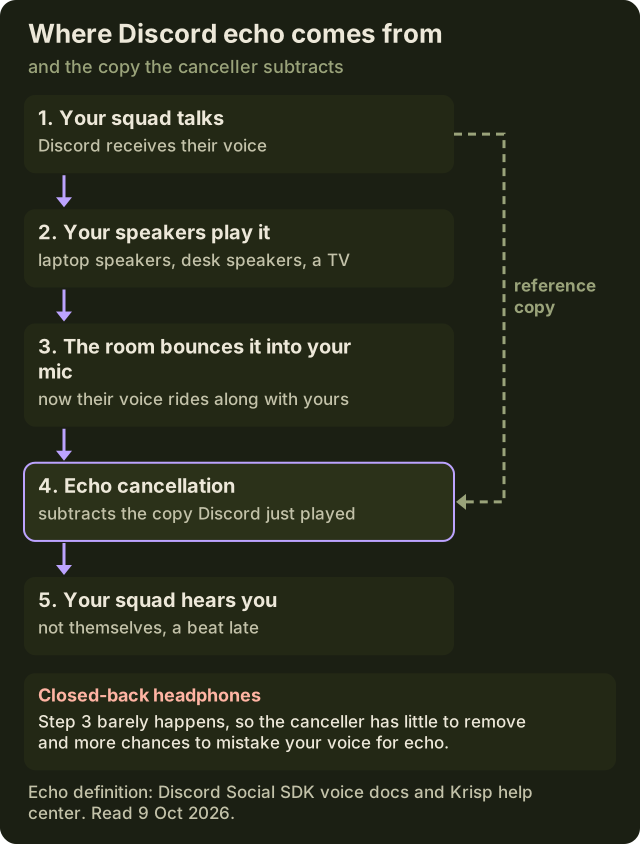
Where the switch lives depends on the client. On the phone app, Discord's troubleshooting guide lists it under User Settings, Voice, alongside Auto Sensitivity, Noise Suppression, Noise Reduction and Automatic Gain Control, and it suggests toggling each one to see whether your voice changes. On desktop and in the browser it sits with the other voice switches in User Settings, Voice & Video. iPhone is the odd one out: Discord says it uses the iPhone's built-in audio processing for echo cancellation and automatic gain control, so iOS is doing that job rather than Discord's own code.
Headphones vs speakers: the rule
The whole decision comes down to one question: can the sound coming out of your device reach your microphone? If it can, keep the canceller on. If it physically can't, the canceller is guarding an empty doorway and every so often it will mistake your own voice for a burglar.
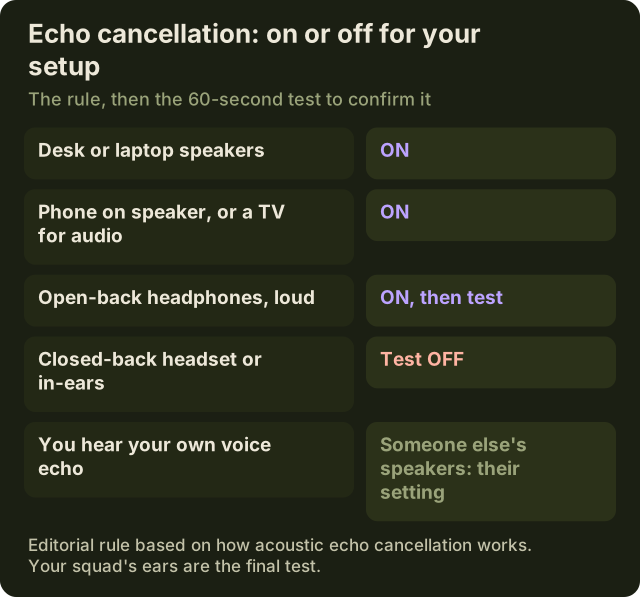
- Desk speakers, laptop speakers, a TV or a phone on speaker: on, no debate. Without it your squad hears themselves a beat late every time they talk.
- Open-back headphones at gaming volume: on, then test. Open-backs leak by design, and a sensitive condenser mic a few centimetres away will hear them.
- Closed-back headset or in-ear monitors: test it off. The leak is close to nothing, so the canceller has little to do.
- Laptop with the built-in mic and built-in speakers: on, and expect the canceller to work hard, because the two are centimetres apart.
Mac laptops have a quirk worth knowing. Discord's known-issues note on MacBook audio, first posted in 2020, says the desktop client deliberately plays the left side quieter, by design, to reduce echo going into the mic, because the microphone sits under the left speaker. If one side of your MacBook sounds faint in calls, that's the reason, and Discord points out its browser client doesn't do it.
Side-effects: quieter voice, double-talk chop
An echo canceller has one hard problem: telling your voice apart from the copy it's subtracting when both arrive at once. Audio engineers call that double-talk. When you talk over a teammate, the canceller has to decide in real time which energy is echo and which is you, and if it guesses wrong it ducks or clips your voice for a moment. Zoom's own support docs make the trade visible, because Zoom exposes levels where Discord gives you a switch. Zoom pitches its High echo setting at calls where several people talk at once.
Discord gives you on or off, nothing in between. So the side-effects show up as symptoms rather than settings: callouts that sound quieter than your normal speech, words that chop when two people talk at once, and a pumping feel in loud fights. A 2022 thread in Discord's community forum describes exactly this: a teammate's voice distorting whenever both people talked, which pushed the poster to switch the canceller off, since the person they mostly called wore closed-back headphones. The same poster then noticed their voice got quieter for others while they watched a stream with it off. That's one user's report, not anything Discord documents, which is why the fix below is a test you run instead of a rule you trust.
Two neighbours in the same menu get blamed for the same symptoms. Automatic gain control evens out your level and can sound like a volume ride. Automatic input sensitivity decides when you transmit at all, and if it guesses wrong it clips the ends of sentences, which Discord itself flags. Change one switch at a time, or you'll never know which one fixed it.
The 60-second on/off test
Discord's Mic Test under Voice & Video plays you back to yourself, which is useful for levels but useless here, because echo needs someone on the other end. Grab one patient teammate and a voice channel.
- Echo cancellation on. Ask your teammate to talk non-stop for 15 seconds while you count from one to ten out loud over them.
- Switch it off, change nothing else, and repeat the same 15 seconds.
- Ask which pass made your count sound steadier and louder. That's the double-talk check.
- With it still off, have your teammate talk loudly while you stay silent. If they hear themselves come back, your headphones leak: turn it back on.
- Neither pass sounded different? Leave it on. It costs you nothing when it isn't doing anything.
Run it with the headset and volume you actually play at. A test at half volume tells you nothing about the clutch round where you have the game cranked.
Echo that isn't acoustic
Echo cancellation only subtracts what Discord itself played. If the echo comes from a routing mistake, the canceller can't see it, and flipping the switch fixes nothing. These are the usual suspects on a streaming or gaming PC.
- Windows is playing your mic back to you. In the Sound Control Panel, open your mic's Properties and check that Listen to this device is unticked.
- You picked a loopback input. Stereo Mix or any what-you-hear device as Discord's input sends everything you hear, squad included, straight back to the squad.
- You're in the call twice. Desktop app plus browser tab, or PC plus phone, in the same channel means one device plays your voice into the other.
- OBS is monitoring your mic out loud. Audio monitoring set to play through speakers puts your voice in the room, and your mic hears it again.
- A virtual mixer has chat on the mic bus. In tools like SteelSeries Sonar, a wrong route can mix the chat channel into what Discord treats as your microphone.
If the mixer is the suspect, our SteelSeries Sonar setup guide walks the lanes. If nobody hears you at all, that's a dead input rather than an echo, and the Discord mic not working triage starts there.
One more honest limit: Discord's canceller lives inside Discord. Your OBS stream, a Zoom call or game voice chat each run their own processing or none. The standalone Krisp desktop app sits in front of every app as a virtual mic, and its help center says echo cancellation is active by default on both paid plans, Core and Advanced. It's a subscription: the 7-day trial needs no card, and staying on Core costs $8 per month billed yearly or $16 billed monthly (Krisp pricing, 9 October 2026). Discord's built-in switches cover most people at $0, so try those first. The Discord noise suppression guide covers the switch next door.
FAQ
What does echo cancellation do on Discord?
It removes the sound of your speakers from your microphone signal. Discord keeps a copy of the call audio it played and subtracts anything matching it from what your mic picks up, so the people you're talking to don't hear themselves a beat late. You never hear the echo yourself; the person whose voice is bouncing does.
Should I turn off echo cancellation on Discord with headphones?
With a closed-back headset or in-ears, you can, and it's worth testing. Little sound leaks into the mic, so the canceller has almost nothing to remove and a chance to clip you when two people talk at once. With open-back headphones at high volume, keep it on unless a teammate confirms they don't hear themselves with it off.
How do I turn off echo cancellation in Discord?
On the phone app, open User Settings, then Voice, and toggle Echo Cancellation. On desktop and browser, open User Settings, then Voice & Video, and switch it off with the other voice toggles. Change only that one switch, then test with a teammate in a voice channel rather than the solo Mic Test.
Why do I hear an echo of myself on Discord?
Usually because someone else in the call is on speakers with no echo cancellation, or is in the channel on two devices at once. Your own setting can't fix their room. If the echo only appears when one particular person joins, they're the cause. If it never stops, check your own loopback routing: Listen to this device, Stereo Mix or OBS monitoring.
Does echo cancellation make my mic quieter?
It can, mostly when you talk over other people. The canceller has to separate your voice from the echo it's removing, and during double-talk it may duck you briefly. Automatic gain control and automatic input sensitivity cause similar symptoms, so switch one setting at a time and compare.