Discord Noise Gate: Set Input Sensitivity by the Meter
Discord already has a noise gate. It's the input sensitivity slider, and it works once you stop letting it guess.
Discord has a noise gate, it just doesn't call it one. In Voice Activity mode, the input sensitivity slider is the gate: below the marker your mic stays shut, above it you transmit. Turn off Automatically determine input sensitivity, watch the meter while you sit silent and while you speak softly, and park the marker in the gap between the two. That fixes keyboard clicks between callouts for most players. If there's no gap, because your keyboard peaks as loud as your quiet voice, you need suppression in front of the gate, an external gate with real controls, or push-to-talk.
Every path and quote below comes from Discord's Voice Input Modes help article and its Krisp FAQ, read on 9 October 2026.
Discord's gate is input sensitivity
Discord gives you two input modes under User Settings, Voice & Video, Input Mode. Push to Talk transmits only while you hold a key. Voice Activity transmits when your mic level crosses a threshold, and that threshold is the input sensitivity marker. Signal opens a gate, silence closes it. Same job as the gate filter in a streaming app, minus the extra knobs.
Out of the box, Discord sets the threshold for you. Its own help article is unusually frank about the limits: automatic sensitivity may not perform as expected with significant background noise or big swings in how loud you talk, and if your volume jumps around or the ends of your sentences get cut off, Discord recommends disabling it. In a gaming room, with a mechanical keyboard and a fan, that's exactly the situation automatic mode is bad at.
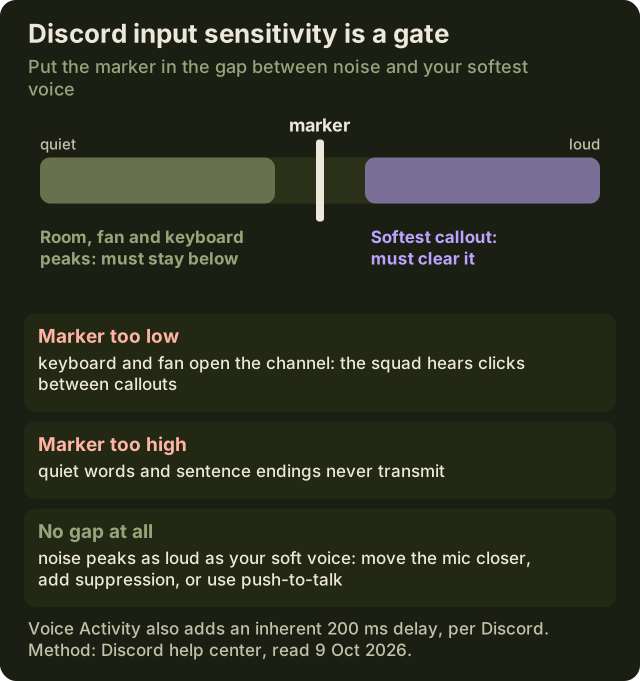
One trade-off is baked in. Discord notes that Voice Activity carries an inherent 200 ms delay, plus the distance to the server. You won't hear it yourself, but it's why a fast first word occasionally lands a hair late.
Setting it by meter, not by guess
Discord's guidance boils down to a rule you can apply in two minutes: the marker has to sit high enough that nothing transmits while you're silent, and low enough that it doesn't cut you off when you speak softly. Discord adds that the activity bar should stay in the yellow portion while you're not speaking. Here's the routine.
- Pick your mic by name in the Input Device dropdown. Default follows Windows around and changes when a headset sleeps.
- Set Input Mode to Voice Activity and switch off Automatically determine input sensitivity.
- Silence test: hands on the keyboard, game audio playing in your headset, fan at gaming speed. Type like you're in a fight and note where the meter peaks.
- Soft-voice test: say a callout at the volume you use when you're tired at 2am. Note where the quietest syllables land.
- Drag the marker into the gap, closer to the noise than to your voice, so the soft words have headroom.
- Join a voice channel with one teammate and repeat both tests. Their ears are the ground truth, not the meter.
If step 3 and step 4 overlap, the slider has no right answer. Move the mic closer to your mouth first, since that raises your voice without raising the keyboard. Then read the next two sections.
Gate vs Krisp: use both, in order
The gate and Discord's Krisp toggle do different jobs. Krisp removes non-voice noise while you're talking; Discord's FAQ lists dogs barking, vacuums and slamming doors. The gate decides whether you transmit at all. One cleans the signal, the other decides whether there is one. Run Krisp with the gate set loose enough to catch your soft words, and you get clean speech with a closed mic between callouts.
The order of setup matters more than the order of processing. Set the marker with the noise suppression option you'll actually play with, because the combination is what your squad hears, and re-check it any time you change that option. Two Krisp limits worth knowing: Discord turns it off automatically when your CPU usage is very high, and in a quiet room with a good mic Discord itself says you may hear a dip in voice quality. Our Discord noise suppression guide covers the toggle and why it sometimes vanishes.
When you need a real gate (external tools)
Discord exposes one slider. A full gate gives you separate open and close thresholds plus attack, hold and release, which is how it stays open through the dips between words without opening for every keypress. OBS's gate has all five controls, with defaults of -26 dB open, -32 dB close, 25 ms attack, 200 ms hold and 150 ms release, but it only shapes what OBS outputs. Your Discord mic never passes through it unless you route OBS into a virtual audio device, which is a lot of plumbing for voice chat. Our OBS noise gate guide covers that gate for the stream side.
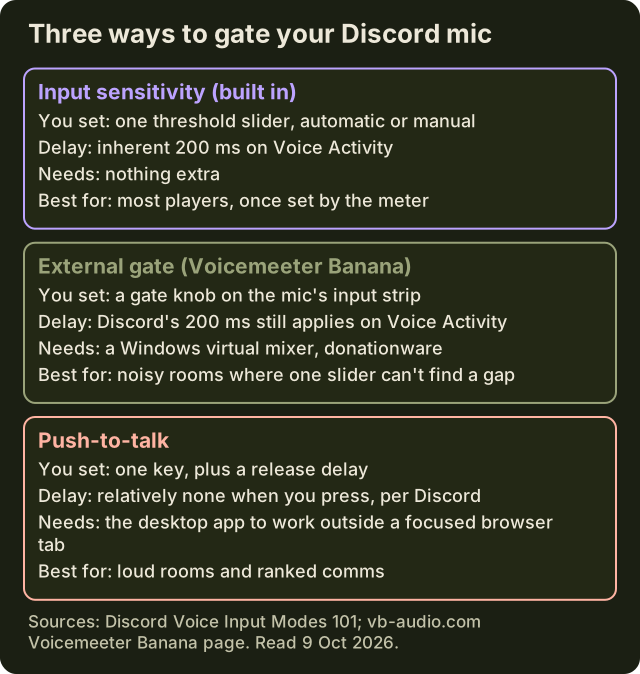
- Voicemeeter Banana (Windows, donationware): VB-Audio lists a gate effect knob on each input strip. You run the mic into Voicemeeter, then select Voicemeeter's virtual output as Discord's input device and leave Discord's own slider low.
- NoiseGator: the old Java gate still turns up in forum answers, but its SourceForge page shows no update since 2016. We wouldn't build a setup on it.
- Sonar and other mixers: if you already route your mic through a mixer for other reasons, check what it offers before adding another app. Our SteelSeries Sonar setup page covers its lanes.
Whichever route you take, keep one gate doing the deciding. Two gates stacked, one external and one in Discord, each with an opinion about when you're talking, is how the first word of every sentence disappears.
Push-to-talk as the zero-guess gate
Push-to-talk removes the threshold entirely. Nothing goes out unless you hold the key, so the keyboard problem is gone by definition, and Discord says PTT has relatively no delay when you press the button, unlike Voice Activity's 200 ms. The Push to Talk Release Delay slider controls how long Discord keeps transmitting after you let go, which saves the last word of a callout.
The catch is ergonomics and one platform limit. In a fight, one more key to hold is a real cost, and some players never stop forgetting it. And per Discord, push-to-talk in the browser only works while the Discord window is in focus; for system-wide PTT while a game has focus, you need the desktop app. If PTT misfires while a game runs as administrator, that's a known case with its own Discord help article.
Edge cases
- Streamers on Discord and OBS at once: the two gates are separate. Set Discord's slider for chat and the OBS gate for the stream, each against its own meter.
- Shared rooms: a second voice nearby is louder than a keyboard and sits right in your voice range. A gate can't separate it; distance and push-to-talk can.
- Phone: Discord's mobile Voice settings include Auto Sensitivity, so the same rules apply. Turn auto off if your words get clipped.
- Mic not detected at all: no slider position helps. Run the Discord mic not working triage first.
FAQ
Does Discord have a noise gate?
Yes. In Voice Activity mode the input sensitivity slider works as a gate: your mic transmits only when its level crosses the marker. Discord can set it automatically, but with background noise or uneven speaking volume it recommends switching automatic off and setting the marker yourself.
How do I set up a noise gate on Discord?
Open User Settings, Voice & Video. Set Input Mode to Voice Activity and disable Automatically determine input sensitivity. Watch the meter while silent with your keyboard going, then while speaking softly, and drag the marker into the gap between the two. Test with a teammate in a real voice channel.
What should my Discord input sensitivity be?
There's no universal number, because it depends on your mic gain, distance and room. Discord's rule is the right one: high enough that nothing transmits when you're silent, low enough that your softest speech still gets through. Set it against your own meter and adjust in small steps.
Why does Discord cut off the end of my sentences?
Usually because automatic input sensitivity, or a marker set too high, closes the gate as your voice trails off. Discord names this exact symptom as the reason to disable automatic sensitivity. Lower the marker a little, or switch to push-to-talk and use the release delay slider.
Is push-to-talk better than voice activity?
For loud rooms, yes: nothing transmits unless you press the key, and Discord says there's relatively no delay on press, versus an inherent 200 ms on Voice Activity. For players who hate holding a key mid-fight, a well-set input sensitivity with Krisp on is the comfortable middle ground.